


--By Jay Farlow, W9LW
The first three parts of this series covered the essentials of using the customer programming software (CPS) app to configure the Baofeng DM-32UV for DMR (digital) and FM (analog) use. This part covers an optional feature: channel scanning.
In Parts Two and Three, I pointed out that every channel you want to see on your radio must be in at least one zone. Your experiences with FM-only radios might lead you to expect that pressing a “scan” key will automatically scan all the channels in a zone, but that’s not how most DMR radios work. Instead, scan lists control what channels the DM-32UV will scan. Without at least one scan list, no scanning will occur.
Programming the Baofeng DM-32UV Part One: Preparations
Programming the Baofeng DM-32UV Part Two: Entering Data for DMR
Programming The Baofeng DM-32UV Part Three: Cover FM (analog) Frequencies
Create a scan list
Enabling channel scanning on the DM-32UV is a multi-step process, the first step of which is to create a scan list. This list determines which channels will be scanned when you activate scanning on the radio. With the CPS and firmware versions I had when I created this guide (firmware version DM32.01.L01.048 and CPS version 1.45), the DM-32UV allowed only 16 channels per scan list. You might have, for example, 20 channels in a zone, but you can scan only 16 of those channels at a time.
In the tree view on the left side of the CPS, in the “Public” section, click “Scan.” A table will appear. Double click on the first row. A “Scan Information” dialog box will appear. Using the same procedure described for zones in Parts Two and Three of this series, name the scan list something relevant and add up to 16 channels from the “Available Channel” list to the “Scan Channel Members” list. See Figure 1, below.

Figure 1: Creating a scan list
You may create more than one scan list. For example, you may create a unique scan list for each zone in your codeplug. Any channel may appear in as many scan lists as you choose. For example, you might wish to have 146.52 MHz FM simplex in multiple scan lists. You may include any channel in any scan list, including DMR and FM channels and even channels that aren’t in any zone. For example, if you wish to scan a public safety frequency on which you are not authorized to transmit, you might put it in a scan list without putting it in a zone.
Linking scan lists to channels
You might have noticed while creating channels that the Channel Information dialog box has a field labeled, “Scan List.” The purpose of this field is to select a scan list that the radio will use if you activate scanning while the radio is set to that channel. Unfortunately, with the version of CPS and firmware I had when writing these instructions, choosing a scan list in a Channel Information dialog box had no effect on the radio. If Baofeng corrects this issue in a future version, it will be helpful to edit one or more channels to link a scan list to each channel. Then, anytime you activate channel scanning the radio will automatically use the scan list associated with the selected channel.
Importing channel data from a comma-separated values file is an advanced operation beyond the scope of this article. It is important to note, however, that if you do so with CPS version 1.45, the CPS will change the scan list setting on every imported channel to “None.”
Save and write the codeplug
After you create the scan lists you want, save your work and then write the new version of your codeplug to your radio.
Activating channel scanning
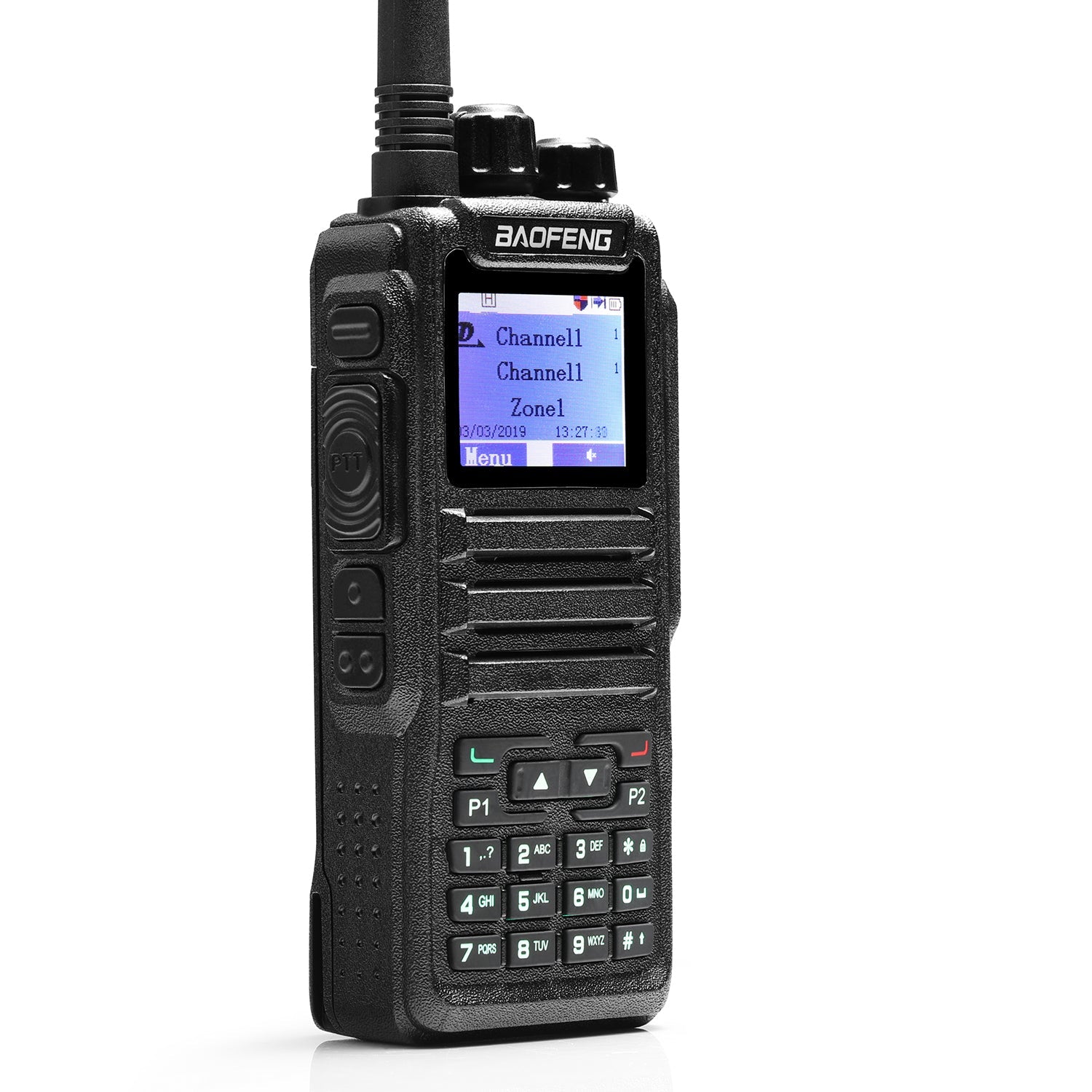
To activate scanning, press the menu key on the radio. Use the channel knob or the down arrow key to move the cursor to “Scan,” and then press the menu key to select that item. Move the cursor to “Scan List” and the press the menu key again. Move the cursor to the scan list you want and then press the menu key again. Leave the cursor on “Apply” and then press the menu key again. Press the “Back” key to return to the main Scan menu. With the cursor on “Scan Switch,” press the menu key again. Move the cursor to “On” and press the menu key again. The radio will begin scanning the selected scan list.
Assigning functions to the radio’s programmable keys is beyond the scope of this article, but it is possible to assign a key (for example, one of the side keys) to activate channel scanning. Because of the limitation described above, users who wish to activate scanning with a programmable key must still select a scan list with the radio’s menu system as described above before activating scanning. This might change, however, in a future version of the CPS or radio firmware.


3 comments
Great, timely four DM-32 articles in The Blog. Please keep ‘em coming.
Will Baofeng be releasing an updated DM-32 firmware & CPS revision soon?
Hopefully one that fixes the broken code that is supposed to link channels to Scan List when declared while setting up the channel in the CPS Channel Editor?
John – What firmware version are you using that allows for scanning the zone, not just the 16 channels in the scan list, and what steps are involved in setting up sone scan? I just purchased the radio with firmware version DM32.00.01,048 and am using CPS version 1.45 but cannot find a zone scan setting.
Thanks.
It seems that in the current firmware/CPS you can scan all the channels in a zone, no scan list required. Works for me.