


--By Jay Farlow, W9LW
The Baofeng DM-32UV has four programmable keys that can make accessing certain functions quicker. This post describes how to use the Baofeng customer programming software (CPS) to configure those keys.
The post requires an understanding of issues covered in Parts One and Two of this blog series. If you have not read those posts, I recommend reading them now before continuing.
Programming the Baofeng DM-32UV Part One: Preparations
Programming the Baofeng DM-32UV Part Two: Entering Data for DMR
Programming The Baofeng DM-32UV Part Three: Cover FM (analog) Frequencies
Programming the Baofeng DM-32UV Part Four: Channel Scanning
Programming the Baofeng DM-32UV Part Five: Digital Monitor & RX Group Lists
Baofeng identifies the four programmable keys as “side key 1” (SK1), “side key 2” (SK2), “P1” and “P2.”
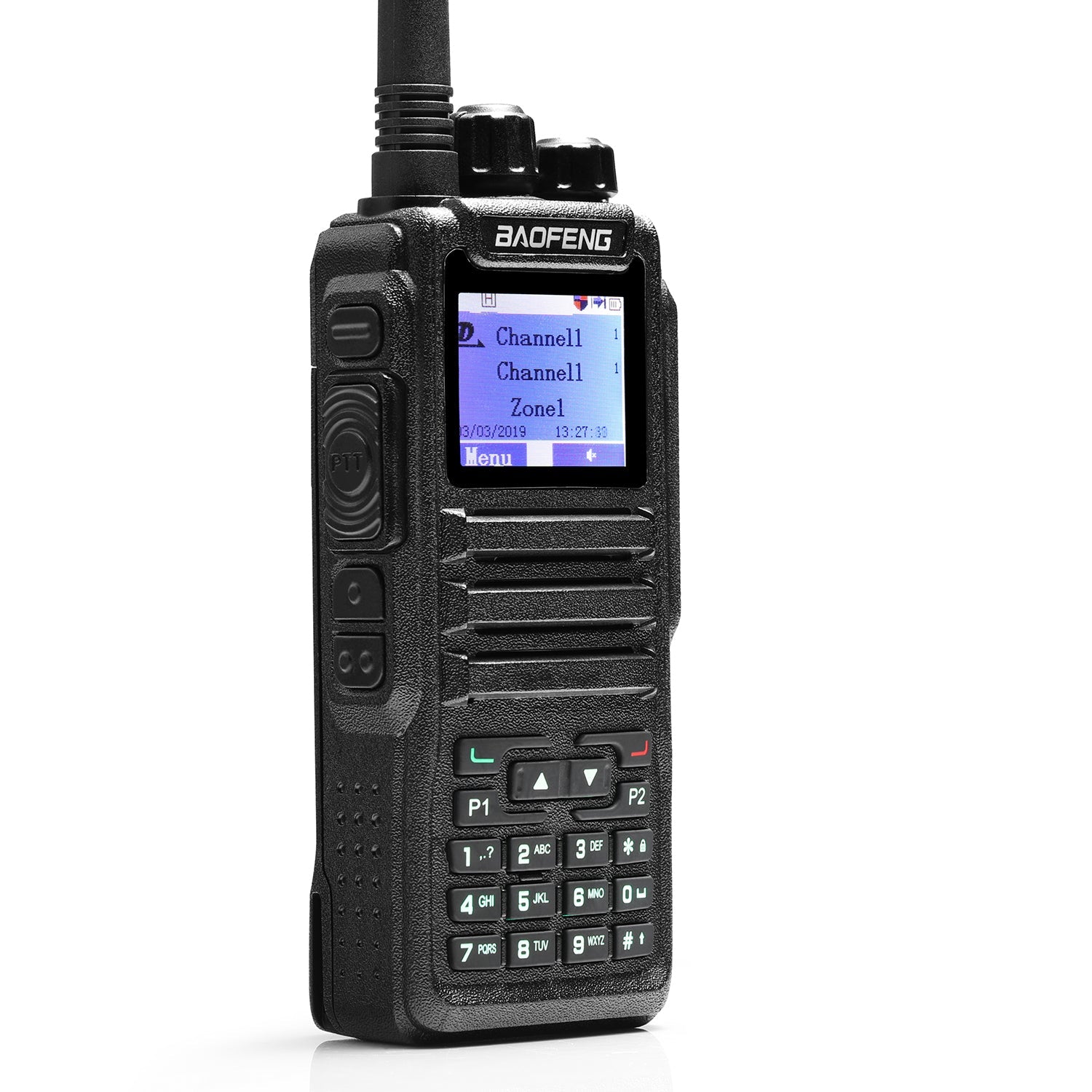
SK1 and SK2 are on the left side of the radio, below the push-to-talk (PTT) key. SK1 is closest to the PTT key and SK2 is below SK1. P1 and P2 are on the front panel of the radio, on the left and right side of the “rocker” key immediately below the LCD display.
Each key can have two functions assigned to it: one that’s activated by a “short press” of the key and another that’s activated by a “long press.” By default, a long press is any press of three seconds or more in duration and any press of fewer than three seconds is a short press.
The table below shows the functions that were assigned to each key when I received my radio from the manufacturer.
| Key | Short Press | Long Press |
|---|---|---|
| SK1 | Toggle the FM broadcast receiver on and off | Display GPS information |
| SK2 | Toggle the monitor function (defeating squelch and any tone decoding on an analog channel) | Toggle transmitter power through low, medium and high |
| P1 | Display battery voltage (*see note below) | Display the talk group list |
| P2 | Toggle between VFO and memory (channel) mode | Scan frequencies in analog mode |
On my radio, I changed the key configurations as shown below.
| Key | Short Press | Long Press |
|---|---|---|
| SK1 | Toggle channel scanning on and off (**see note below) | Nuisance channel delete (temporarily remove a busy channel from a scan list) |
| SK2 | Toggle transmitter power through low, medium and high | Toggle the FM broadcast receiver on and off |
| P1 | Move the radio down in the zone list (Zone down) | Toggle dual watch mode, which scans quickly between the channels on the top and bottom of the display |
| P2 | Move the radio up in the zone list (Zone up) | Toggle the monitor function (defeating squelch and any tone decoding on an analog channel) |
* The battery voltage would not display on my radio using firmware version DM32.01.L01.048.
** With CPS version 1.45 and radio firmware version DM32.01.L01.048, channel scanning will not begin until the user first select a scan list from the radio’s menu system. For more on this, see Part Four of this series.
The image below shows how I used the CPS to configure the key functions listed above.

The same changes can be made directly on the radio using its menu system. Some of the functions are, however, labeled differently in the radio menu than the same functions in the CPS.
As with any other changes to the codeplug, I recommend that you save the codeplug under a new name (so you can always go back to the previous version) and then write it to the radio.


0 comments